Posts
Squatter 33 — Prompt Engineering 🎯
Catching Up with The Squatter (Part 1) I’ll admit it — I’ve fallen a little behind posting Squatters here. They’ve still been popping up on campus, but not always making their way online. Over the next few weeks, I’ll be dropping one Squatter per week until we’re caught up. First up is Squatter 33: Prompt Engineering . This edition digs into the idea that AI is only as good as the questions we ask it. Better prompts = better outputs. Inside are teacher-friendly examples of how to craft prompts that save you time while still giving you usable results. 📄 Download Squatter 33 (PDF) What’s one classroom task you’d like to try writing a “perfect prompt” for?
Squatter 18 - Twelve Days of TechTips
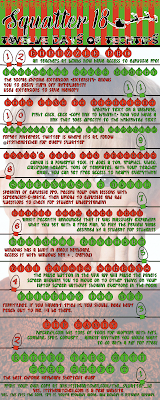
On the first day of Christmas, Tall Tech Guy gave to me... SQUATTER 18 - Twelve Days of Tech Tips! Christmas themed and posted to your favorite places to R&R (Read and Relax) as well as shared here on the internet for everyone. Yes, you can even sing this one. Don't be shy. Belt it out the best you can, where ever you're reading the Squatter. Click the link below for a full sized version.
EdTech 180 #4 - Google Chrome Bookmarks Bar

EdTech 180 #4 - Google Chrome Bookmarks Bar The Bookmarks Bar in Chrome is much more useful than I realized. I was working with a student on saving some bookmarks, when I noticed options I have never seen before. Keep reading below, or watch the video (or both) to see what I mean. You can show or hide the bookmarks bar by clicking the three vertical dots (I like to call it the snowman) in the top right corner of the Google Chrome Browser, then click bookmarks, then “show bookmarks bar”... or by using the keyboard shortcut to toggle it on and off. That’s Ctrl+Shift+B for windows or ChromeOS users, or Command+Shift+B for the MacOS users out there. I noticed that while the controls for showing or hiding the bookmarks bar still work in a new tab, they did not take effect until you loaded some content in the tab. Note that the bookmarks bar always shows on the new tab page, even if you’ve hidden it in other tabs. Once you load content into the tab, the bookmarks tab will go away. To add a s...
Quickie - Changes to Google Meet

Oh man, I'm excited. Some of the changes to Meet that Google have been promising us are finally rolling out. Take a look at the video below for more details. Sorry for the quick and rough production value here. I wanted to get this out to teachers as soon as I could. You have no idea how often I get asked about some of these features. This is AAAAAAAAAAAAAWEWWEeEEEEEEEEEEsSOSSOMMMMMMMMMMEEEEEEEEEEEEE!!!!!!!!!!!!!!!!!!!!!!!!!!!!!!!!!!
eLearning Resources

This is a work in progress, so check back frequently. This is a list of resources for eLearning. There will be tons of stuff here, so click something that looks interesting and see if it will apply to you. Don't feel like you have to go through it all at once. As I add things to the Wakelet, they will automatically add to this page.
Tech Tip of the Week - Mar 6

It’s GIF… not JIF. That being said, I found a tool online that I think could be used in so many different ways. Go check out brush.ninja. Yes. Brush (dot) ninja. Your students can use Brush Ninja to create and animate simple drawings. Have students create animations to insert in a timeline in Padlet. Create animations that explain scientific processes, or showing the steps of solving an equation. Truly, the limit here is your imagination.
Tech Tip of the Week - Feb. 28, 2020

The Internet is the wild west. It can be a bit… uncivilized. How do we teach our students, as well as our own children… and ourselves for that matter, to bring a touch of civilization to the internet? How do teach and learn how to protect ourselves from those internet ruffians? Google to the rescue! Go check out beinternetawesome.withgoogle.com. (That’s “be internet awesome (dot) with google (dot) com” without the spaces.) Be Internet Awesome covers topics like being kind, but not oversharing, securing your accounts, and finding truth on the internet. It’s even got games to teach the concepts. Yes, it seems like it’s aimed at students younger than High School, but if they haven’t learned it by now, they could use the exposure. Consider this for your own children as well.
Tech Tip of the Week - Feb. 21, 2020

I fought against this one for a long time, but it has more value than I originally thought as a professional learning tool. I’m talking about Twitter. Just like every other “social media” platform, it is what you make of it. At first, it can be a bit like trying to sip water from a firehose. Realize you don’t have to read it all, so just relax and take whatever you get whenever you get the chance. The beauty of Twitter is that you will see what you follow. So here’s what you do… make a Twitter account specifically for professionals worth following. Here’s some recommendations… follow @DrBradJohnson, @jmattmiller, @teachbetterteam, @googledocs, @ericcurts, @burgessdave, @shakeuplearning, @JakeMillerTech, @danielrivera, and of course, @itsthemitchell. Want a crash course in using Twitter as a Professional Learning Network? Hit me up!
Tech Tip of the Week - Feb 18, 2020

Think of an idea. Something for your classroom, or perhaps your life. Something big. Something unattainable. Something pie-in-the-sky. Got it? Great. Now, let’s talk about the adjacent possible. The adjacent possible is in the shadows around where you are right now. It’s something you can do that would move you (and your new adjacent possible) closer to that ultimate goal. Want to try something new? Want to move your classroom, life, or career in a different direction, but don’t think it’s possible? Maybe it’s not possible now, but through interactions with the adjacent possible, you can get there. Now I want you to not only apply the adjacent possible to your idea, but I also want you to show your students their adjacent possible. Most importantly, be the reason somebody smiles today.
Tech Tip of the Week - Feb 14, 2020
By now you’ve seen the Squatter… and if you haven’t check it out here... ( Squatter 1 , Squatter 2 , Squatter 3 , Squatter 4 , Squatter 5 , Squatter 6 ) Anyway, the amazing graphic design work done on the Squatter is all done on Canva.com. Canva is a graphic design website. It is a “freemium” website, so some features are free, and others cost money. Have your students give it a try the next time you are having them create something. You’ll be surprised at the quality of work that can be achieved without previous expertise… just look at the Squatter. It’s all done for free on Canva.
Tech Tip of the Week - Feb 7, 2020

How far do you drive to work? 5 minutes? 10? 30? If you’re commuting to the bustling metropolis for work every day, consider subscribing to a podcast or two. This may come as a surprise, but many of my ideas aren’t my ideas at all. They’re ideas that come from podcasts I listen to on the way to and from work each day (except Friday. Friday is reserved for music.) There are several podcast apps (Apple Podcasts, Google Podcasts, Sticher, even Spotify has a podcast section now.) There are also tons of subject areas for you to consider subscribing to. For Ed Tech, I listen to Google Teacher Tribe, Shake Up Learning, Cult of Pedagogy, and Educational Duct Tape. Let me know if you need any recommendations or help getting started. As always, be the reason somebody smiles today.
Tech Tip of the Week - Feb 7, 2020

We don't like to talk about this, but you need to understand... Copyright is a real thing, and you are responsible for making sure you have the legal right to use your class resources. Here’s something helpful to make sure the images you are using when creating those class resources are legal for reuse. Go to images.google.com and search for the image you want. Once you have your results, click “Tools” then “Usage Rights” then select one of the “Labeled for Reuse” options. If you are going to be selling the resource on Teachers Pay Teachers, make sure you are allowed to commercially use the images you select. I know it’s a pain, but take a minute to Google “Houston ISD Copyright” for an example of why it matters. Update - Earlier this week, a school in California was fined $250 for a public showing of a movie. The PTO legally purchased a Blu-Ray copy of The Lion King (2019) and used that for a family movie night fundraiser. What's the problem with that? Well, legally purc...
Tech Tip of the Week - Feb 5, 2020

Oh Snap! How often do you want to have two programs open next to each other on your Windows laptop? I am constantly working with multiple windows open. If you want to snap a window to one half of the screen, hold the windows key, and push the left (or right) arrow key. That should snap the window to half of the screen. Better yet, if you have other windows open, it will ask you which one you want open on the other side of the screen. You can also do this by clicking and dragging the title bar of the window to the side or corner of the screen. This is a Windows feature called Snap.
Tech Tip of the Week - Feb 3, 2020

Work with PDF files? If you haven’t found it yet, pdfcandy.com is a one-stop-shop for your PDF needs. You can convert various files to and from PDF files, edit them, combine, crop, split, delete pages, resize, add watermark, extract text, extract images… and a ton of other things. At last count, there were a total of 42 PDF-related tools at pdfcandy.com. If you’re concerned about editing or converting files via the internet, PDF Candy is also installable on your Windows laptop.
Tech Tip of the Week - Jan 31, 2020

Welcome back for another Tech Tip of the Week. Have you heard of Google Tour Builder? It’s a tool that works alongside Google Earth and allows people to create tours that include notation and images. This is fantastic for so many things. Have your students plot significant events from history, or trace the life of a character from a book, or create their ideal vacation, or a timeline with locations of the major innovations that shaped the modern world. The link to the website is tourbuilder.withgoogle.com . If you want to check out a sample of what you can do with Tour Builder, head on over to link.itsthemitchell.com/tourbuilder to see a tour based on major events of the American Revolutionary War.
Tech Tip of the Week - Jan 30, 2020

YouTube is great, isn’t it? Did you know that YouTube is the world’s #2 search engine? Think about it. When you want to learn how to do something, you probably head over to YouTube to watch a video about it. YouTube can be a challenge to use in class. You never quite know what ads will be on the page, or what someone said in a comment. If you’d like to show a YouTube video but are hesitant because you can’t control the rest of the content on the page, here’s a tip… go to watchkin.com, paste in the URL (that’s nerd talk for web address) to the YouTube video you want to show your class. Watchkin.com will strip all the extra content and will block the ads that play before and during the video. As with everything tech, test it here at school before you just assume it will work. BryCo family, I don't think it'll work for us... yet.
Tech Tip of the Week - Jan 29, 2020

Trying something "new" today. I've written some Tech Tip of the Week posts to be shared in a work newsletter. So I thought, "I should post these to my blog, too." Here you go. I'll post quite a few rapid fire at first, then we'll back off to on each week eventually. Ever wondered “What is the quickest, most efficient way to create a new Google Doc?” No? Well, I’m going to tell you anyway. Try this right now. Open a new tab in your browser, and in the address bar at the top of the screen enter docs.new Great, now try sheets.new, or slides.new, or forms.new, or, or sites.new. I just tried gmail.new. It didn't work, but it did do something that made my nerd senses perk up. Makes me wonder if Google is holding out on us. Congrats. You’ve now learned the quickest and easiest way to create new documents in Google!