Posts
Squatter 34 — The Return of the Squat 💪
Catching Up with The Squatter (Part 2) Next in the catch-up series is Squatter 34: Return of the Squat . This one takes a movie-themed approach to Chromebook use in the classroom. It’s a lighthearted but practical look at how to keep Chromebooks from being the villain in your lesson — instead turning them into the supporting character that helps everything run smoothly. Think of it as your director’s cut for classroom tech management. 📄 Download Squatter 34 (PDF) If Chromebook use in your class was a movie genre, what would it be — comedy, action, or horror?
Book Review - Educational Duct Tape by Jake Miller
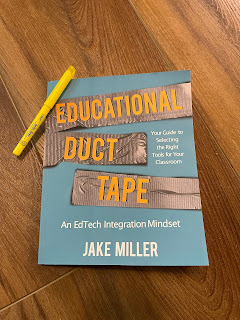
If you're in Education, and have paid any attention whatsoever to the EdTech space, you've probably heard of Jake Miller. His website ( jakemiller.net ) and podcast ( Educational Duct Tape ) are staples in the EdTech community. Seriously, if you haven't checked out any of his stuff yet, you're in for a treat. I could, and probably should, write a full review about the website and podcast, but today it about the book. What follows is my loose, hastily written, randomly ordered thoughts about the book. I'd do a better job of organizing this, but I've got two young ones waiting on me to come play Candy Land. If you're an educator, this book should be on your reading list. Yes, it's full of tech tips, but tech changes rapidly. Yes, it's full of recommended tech tools to fit certain needs, but again, that tech will change in the future. The real value here is in the recounting of Jake's experience as a developing educator. His repeated mantra of ...
EdTech 180 #4 - Google Chrome Bookmarks Bar

EdTech 180 #4 - Google Chrome Bookmarks Bar The Bookmarks Bar in Chrome is much more useful than I realized. I was working with a student on saving some bookmarks, when I noticed options I have never seen before. Keep reading below, or watch the video (or both) to see what I mean. You can show or hide the bookmarks bar by clicking the three vertical dots (I like to call it the snowman) in the top right corner of the Google Chrome Browser, then click bookmarks, then “show bookmarks bar”... or by using the keyboard shortcut to toggle it on and off. That’s Ctrl+Shift+B for windows or ChromeOS users, or Command+Shift+B for the MacOS users out there. I noticed that while the controls for showing or hiding the bookmarks bar still work in a new tab, they did not take effect until you loaded some content in the tab. Note that the bookmarks bar always shows on the new tab page, even if you’ve hidden it in other tabs. Once you load content into the tab, the bookmarks tab will go away. To add a s...
Ed Tech 180 #3 - Text Transcripts in Google Meet using Otter.ai

Been in a Google Meet lately? Ha... yeah... I know... that's like asking if you've taken a breath or seen the sky lately. Ever wanted a transcript of that meet for reasons? Maybe you want to make a study guide from a lesson you recorded in Meet. Maybe you wanted to provide a read-along text for a vide you created. Maybe you wanted to offer your students the ability to read through something you taught via Google Meet for clarity and deeper understanding. Now, with the power of Otter.ai (a Freemium tool) you can have it. Take a look!
The Squatter 12 - Chrome Extensions
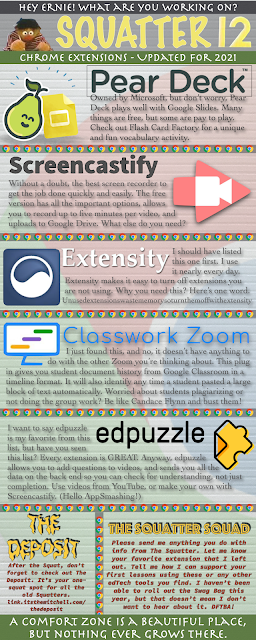
Welcome to The Squatter 12! We're diving back into the realm of Chrome extensions. Here you'll find a handful of super helpful extensions to help you save time, free up memory, record yourself, and keep your students on task. Take a minute and read through the extensions listed. You might find something new. I know I did while researching for Squatter 12. Click the image below for a full sized PDF of Squatter 12.
Jamboard in Google Meet

Good news everybody! Jamboard is now a part of Google Meet. Take a look at the incredibly brief and low quality demonstration of how to create a Jam from within a Meet, and how to take a look at the Jam after the Meet has finished.
Quickie - Changes to Google Meet

Oh man, I'm excited. Some of the changes to Meet that Google have been promising us are finally rolling out. Take a look at the video below for more details. Sorry for the quick and rough production value here. I wanted to get this out to teachers as soon as I could. You have no idea how often I get asked about some of these features. This is AAAAAAAAAAAAAWEWWEeEEEEEEEEEEsSOSSOMMMMMMMMMMEEEEEEEEEEEEE!!!!!!!!!!!!!!!!!!!!!!!!!!!!!!!!!!
Tech Tip of the Week - Jan 31, 2020

Welcome back for another Tech Tip of the Week. Have you heard of Google Tour Builder? It’s a tool that works alongside Google Earth and allows people to create tours that include notation and images. This is fantastic for so many things. Have your students plot significant events from history, or trace the life of a character from a book, or create their ideal vacation, or a timeline with locations of the major innovations that shaped the modern world. The link to the website is tourbuilder.withgoogle.com . If you want to check out a sample of what you can do with Tour Builder, head on over to link.itsthemitchell.com/tourbuilder to see a tour based on major events of the American Revolutionary War.
Tech Tip of the Week - Jan 29, 2020

Trying something "new" today. I've written some Tech Tip of the Week posts to be shared in a work newsletter. So I thought, "I should post these to my blog, too." Here you go. I'll post quite a few rapid fire at first, then we'll back off to on each week eventually. Ever wondered “What is the quickest, most efficient way to create a new Google Doc?” No? Well, I’m going to tell you anyway. Try this right now. Open a new tab in your browser, and in the address bar at the top of the screen enter docs.new Great, now try sheets.new, or slides.new, or forms.new, or, or sites.new. I just tried gmail.new. It didn't work, but it did do something that made my nerd senses perk up. Makes me wonder if Google is holding out on us. Congrats. You’ve now learned the quickest and easiest way to create new documents in Google!
Get Your Creative Students Excited About Programming with CS First

Back on December 23rd of 2018, I published a blog post about teaching coding with Google. It was basically a bullet point list of things I saw as I was looking at the website for the first time. Now I have had the time to implement it with my classes for a week. Here's my thoughts. First, this is a very well laid out platform. There are videos with screencasts showing you exactly what you need to do in order to get started. They frequently use starter projects in Scratch. The starter projects typically include code that is either too complicated for where the students are, or is trivial for their ability if they have made it that far. Often the starter projects will include sprites or backgrounds premade for those particular projects. The videos are high quality. All videos have captions available (in English, I have not looked for other languages) and have the ability to play back at a faster speed, as well as a lower speed. The instructions were clear, and incredibly eas...
Teach Coding With Google

Google has been quietly at work in the Computer Science / STEM / STEAM Education world. A couple weeks ago I found out that Google had acquired Workbench Education . Look for a write up on that in the coming weeks. I'm really excited about integrating Workbench into my drone programming unit. That being said, today I'm working through the Google CS First Storytelling Unit. When I Say I'm working through it, I mean I'm going to walk through the process of creating a class, add myself to the class, and see what kinds of activities are included. I'll pop back in periodically with bullet points to keep you informed of my progress. That being said... here we go. Banners talking about a transition to Scratch 3.0 on January 2nd. I'm not sure how in depth the changes to the new version of Scratch are, but that is something to keep in mind. I was able to log in using my school credentials. It looks like the programming is Scratch based. Setting up classes doe...
Google Certifications - Not Just For Teachers Anymore

Teachers. Students. Parents. People of the Earth. Do you love Internet points? Do you enjoy having nifty little certification images in the signature of your email? Want something to put on your resume that is easy, relatively inexpensive, and will only take a couple of hours? Teachers, Consider Google Certification. Teachers, Google has tons of information available at their Teacher Center , but honestly, if you work in a G-Suite system, you probably already know enough to pass at least the Level 1 test. Take a look through the resources, and sign up. The level 1 exam is only $10, so give it a shot. The Level 2 test takes you a bit more in depth in the basic G-Suite tools, and adds a couple other things in there. Once again, there is training available at the Teacher Center. The level 2 exam is $25. For the Level 1 and Level 2 test, you need a nice quiet place to take the test on a computer with a webcam. You will have three hours to complete the test. Google also offers Tr...